Summary
The FV Crew App offers several benefits to its users, primarily aimed at enhancing efficiency and ease of use for HealthNet crew members.
- Streamlined Sign-In Process: The app simplifies the sign-in process by allowing users to enter their login information and set a PIN for quick access.
- Device Registration: Ensures that only HealthNet-owned devices are approved for use, enhancing security.
- Menu Navigation: The home screen provides current asset and crew information, allowing users to make crew changes easily.
- Duty Management: Users can notify the medical command center of their availability at the start of their shift and manage their duty status.
- Asset and Role Assignment: Users can select assets and roles, log off from assets, and update team status.
- Asset Status Updates: Users can update conditional statuses, set assets out of service, add delay times, and send geolocation information.
- Request Management: The app allows users to manage current and past requests, including accepting or declining requests, updating time entries, and viewing event logs.
- Communication: Users can chat with CAD users regarding current requests.
Overall, the FV Crew App enhances operational efficiency, improves communication, and ensures secure and streamlined processes for HealthNet crew members.
Frequently Asked Questions
Q1: Is the FV Crew app available to be utilized on my personal phone?
A1: No. The app is only to be utilized with Health Team provided phones in order to keep operational consistency and security
Q2: When I start my shift and I sign into the FV crew app do I need to contact Medcom?
A2: Yes, You always should contact Medcom and notify them of your availability. CAMC Medbase requires a fax sheet, WVU Medcom requires a phone call.
Contents
3.1 Assigning you and your partner to an asset. 4
3.5 Role - Users may select a role for themselves and each assigned crew member. 6
Current Asset will display the Callsign, Asset Number, and the Last Known Position. 7
Users may select/unselect conditional statuses for their asset. 7
4.5 Out of Service (Call Sign). 8
5 Requests / Missions / Patient Transports. 10
1 FV Crew App User Sign-in
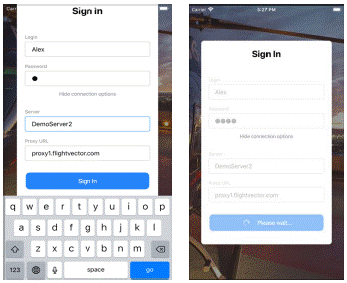
Enter the Login information provided to you by the HealthNet IT Department.
• Username (firstname.lastname)
• Password (last 4 of SSN)
• Server: Health
• Proxy URL: proxy1.flightvector.com
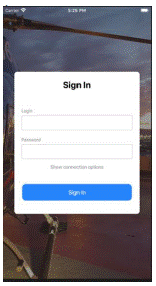
Note: After the initial sign in, the connection options will be hidden from view and user will only need to enter the login and password.
Initial Sign-In Regular Sign-In
- Device Registration
Only HealthNet owned devices will be approved to be utilized with the FV Crew app. Contact HealthNet IT if you receive the error message below on your HealthNet smartphone.
 Setting User Pin after Login
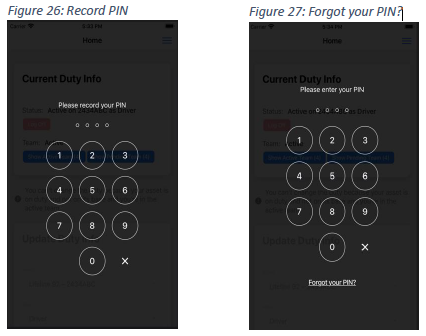
Upon Signing in users are asked to record a 4-digit PIN.
Every time a user logs in they will be asked to re-enter their PIN.
Note: If the PIN is forgotten, click “Forgot your pin?”, then follow the prompts to set a new PIN .
2 Figure 28: Menu
Menu Navigation
Figure 28: Menu |
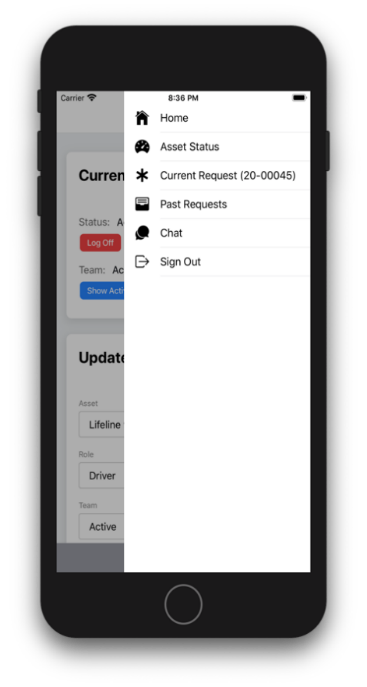 Menu/Home Screen
The home screen will display current asset and crew information.
User may make crew changes from this screen as well.
3 Crew Members
Assigning you and your partner to an asset
At Start of Shift
Upon arrival at your base location at the start of your shift you will need to notify the medical command center of your availability.
- CAMC Vandalia Medbase dispatched crews: Complete the “HealthTeam Crew Fax Sheet” and Fax it to the number provided.
- WVU Medcom dispatched crews: Call WVU Medcom to confirm start of shift.
Current Duty Info
After login to FV Crew App and notification to Medcom you should see your status.
Status - Shows current asset and current role. If this is not complete then select your asset number or truck number and role on that asset.
Asset - Users may select an asset to be assigned to.
Log Off
User may remove themselves from the asset by logging off the current asset. Clicking Log Off will allow them to remove themselves and/or other crew members from the asset.
Note: If an asset is currently on duty and not at base, Log Off will be disabled.
Role - Users may select a role for themselves and each assigned crew member.
Team
Users may select if the team is Active or Pending.
Note: Users may not set the team to active if the asset is not at base.
Was this article helpful?
That’s Great!
Thank you for your feedback
Sorry! We couldn't be helpful
Thank you for your feedback
Feedback sent
We appreciate your effort and will try to fix the article